The question comes up whenever someone unboxes a Huawei handset: with Google Mobile Services absent from the device, what happens to Instagram? The practical answer is that the phone already carries everything needed. AppGallery, the official app store from Huawei, comes pre-installed on every Huawei smartphone, and the guide for huawei instagram on the HUAWEI Community describes exactly how the download and setup work. This article walks through that official path and the settings that keep the app running properly afterwards.
Downloading Instagram the Intended Way
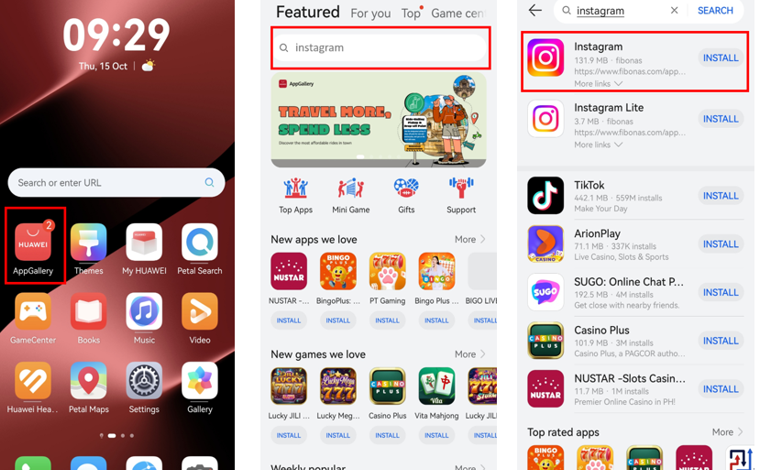
The whole process fits in one line: go to Huawei AppGallery, search Instagram, click Install, and log in to your account. Tapping the AppGallery icon on the home screen opens the store; the search bar at the top finds “Instagram”; the search result leads to the app’s landing page with the install option visible. If the direct listing does not appear on a particular device, the installation continues through GBox rather than through any outside source — the app store manages the entire flow, so there is no need to evaluate download pages or compare installation packages
The Piece That Makes It Work: GBox
Some apps, Instagram included, rely on Google Services for certain components. On a Huawei phone, that need is met by GBox, a globally recognized compatibility app offered through AppGallery. It has undergone extensive testing and verification, including rigorous security audits, so installing and using it is completely secure. Once downloaded during the installation flow — a simple tap on “Install” when prompted — GBox works in the background to support Instagram and other apps requiring Google Services. It acts as a go-between that prevents incompatibilities, which is also why other popular applications can run afterwards without constantly downloading extra software. One setup quietly covers the whole app list.
What the App Looks Like After Sign-In
With Instagram and GBox installed, both icons appear on the home screen. The first launch of Instagram requires signing in to your account, which is expected: authentication belongs to Instagram itself. Once logged in, the app works without a hitch — the feed scrolls, Stories can be posted, Reels can be watched and created, and Direct Messages stay connected. Thanks to GBox running behind the scenes, the experience feels smooth enough that it does not feel different from other devices
Sorting Out Permissions and Notifications
Most questions that surface after installation have one-line fixes documented in the official guide for huawei instagram. If the app seems to be missing access it needs, enable all permissions: from Settings, go to Apps & services, tap Apps, search Instagram from the search bar, select Instagram, and allow all permissions. If notifications fail to arrive, go to Settings, open Notifications & status bar, search Instagram, and allow notifications. Neither step requires technical knowledge — both are ordinary settings pages on the phone.
Keeping the App Current
Updates are managed from the same place the app came from. In Huawei AppGallery, click Me, then App updates: Instagram can be updated manually there, or all apps can be updated at once. This closes the loop on the installation — the store that downloaded the app also maintains it, which is what makes the official route worth sticking with.
See also: Defending Rights and Freedom with a Skilled Assault Lawyer
The Broader Habit
When you want a new app in the future, always check AppGallery first. It is the safest and fastest way to get apps on your Huawei device — no extra steps needed. For anything else, the HUAWEI Community offers step-by-step tutorials, and Huawei customer support is easy to reach for questions about apps. That support system is part of what makes the experience of huawei instagram on Huawei phones straightforward: the app comes from an official store, runs through a verified compatibility layer, and has documented answers for the settings that matter.